Shutting Down
There are times when you may need to shut down a website - for example, if a client has left.
This normally involves deleting all resources associated with the website except for the Project in Semaphore (it doesn't cost us anything, whereas AWS resources can - plus it's a reference for any ENV variables which may be hard to retrieve in future) and taking a backup of the database - just in case.
Here are the steps to follow if you are asked to fully shut down a website.
Don't forget to check for UAT/Staging/Alternative versions of the website you're deleting!
Simply follow all of these steps for each website instance (however, you do not need to backup the database of any UAT/Staging/Alternative site)
Lightsail
Find the website Lightsail and click the Delete tab and click the red Delete instance button and confirm any messages.
You should also check the Lightsail Snapshots for that website and delete them too as they incur costs. Deleting the Lightsail does not delete the snapshots.
You can find all snapshots in the Snapshots tab of the Lightsail homepage
Database
You should connect to the database of the website in question using your SQL client of choice and export all of the tables except the system_event_logs (it can grow quite large).
Once downloaded, upload the sql dump file to our Microsoft Teams Developers Team to Files/Backups/SITENAME/mysql-dump.sql for safe keeping.
You can then delete the database for the website.
Remember to also delete the database user for the website,
S3 Bucket
To delete the S3 bucket for the associated website, you first need to empty it.
On the Buckets list view, find the bucket you wish to delete, select the radio button next to it, and click the Empty button.
This will take you to a new page where you have to confirm your action by typing Permanently delete into the input box and confirming.
If there is a /logs folder present (meaning CloudFront logging was likely enabled) then this may take an obscene amount of time
Once completed, you will then need to visit the overall Buckets list view again, find the bucket you wish to delete, select the radio button next to it, and click the Delete button and following the steps.
IAM Users
Most sites will likely have 2 IAM users associated to them:
- A
site-sitenameuser - used by the app for accessing the S3 bucket - A
semaphore-sitenameuser - used by Semaphore for pushing Docker images to the Elastic Container Registry (ECR)
Both will need to be found in the IAM Users list view and deleted.
Elastic Container Registry (ECR)
There will be a private ECR repository for the website. Simply find it in the list, select the radio button beside its name and click the Delete button, confirming it in the popup.
CloudFormation Stack
Not every website will have a CloudFormation Stack.
Simply skip this step if you can't find one
CloudFormation is responsible for creating/updating/deleting the CloudFront Distribution and Route53 Record for the *.jump-lightsail.co.uk domain that gets created internally.
If your site has a Stack, find it in the list and press the Delete button, confirming it in the popup.
If you delete the stack, then this will also trigger an automatic delete of:
- The CloudFront Distribution
- The Route 53
*.jump-lightsail.co.ukDNS record
Therefore you can skip those sections below.
CloudFront Distribution
If you deleted the CloudFormation Stack then you can skip this step as the CloudFront Distribution will have already been deleted
Find the relevant CloudFront Distribution on the list page by searching for the URL of the website (it will be listed in the aliases column).
Find the Route 53 Record Name before Deleting CloudFront Distribution
You want to find the name of the *.jump-lightsail.co.uk DNS record before you delete the CloudFront Distribution.
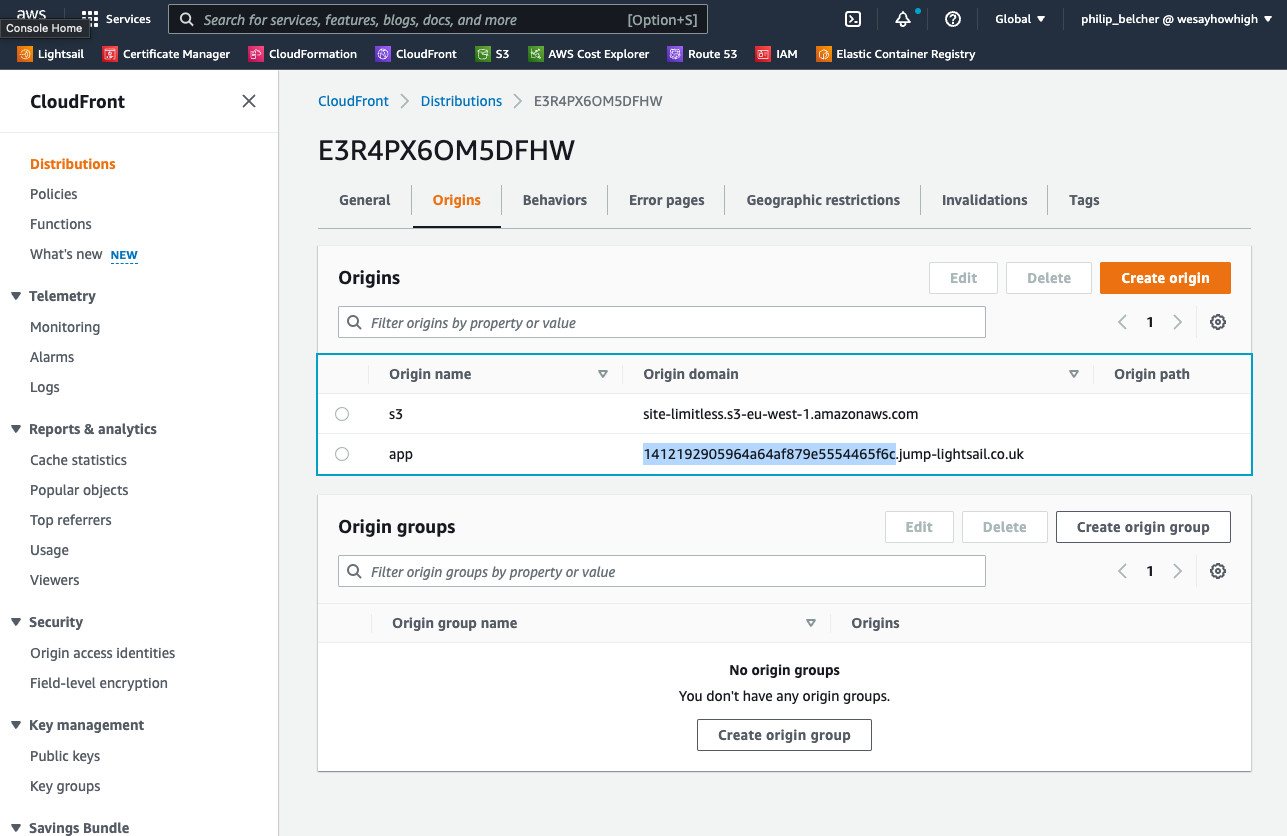
To find this, click on the ID of the CloudFront Distribution to go to the detail page and click on the Origins tab.
You'll see a list of the S3 bucket origin (named s3) and the lightsail origin (named app).
Under the Origin domain column you'll see a long GUID before the .jump-lightsail.co.uk part - make note of this so you can delete it later
Deleting the CloudFront Distribution
Return to the CloudFront Distribution list page, find your Distribution again, click the checkbox beside your Distribution and click the Disable button first (you can't Delete straight away).
The Distribution will update to a Disabled state eventually, at which point you can click the checkbox beside your Distribution again and this time click the Delete button
Route 53 Lightsail Record
If you deleted the CloudFormation Stack then you can skip this step as the Route 53 record will have already been deleted
Hopefully you kept a note of the GUID of the .jump-lightsail.co.uk from the previous step.
If not, hopefully you haven't deleted the Lightsail yet and have access to its IP Address.
If also not, then just skip this step and think about what you've done. It's not the end of the world.
Simply visit the Route 53 Hosted Zone for jump-lightsail.co.uk, find the relevant A Record either by GUID or IP address, click the checkbox and click the Delete button.
SSL Certificate
Find your website in the list, click the checkbox beside it and then click the Delete button, confirming it in the popup.
Postmark Account
Once a site has been shut down, you should remove it from Postmark as it will be running periodic checks on the DNS DKIM record and will send emails complaining that it can't verify it.
Simply go to Servers and select the one your are removing. Click on Settings and then Delete server.
Then, go to Sender Signatures and click the bin against the signature you are removing to delete it.