Manipulators
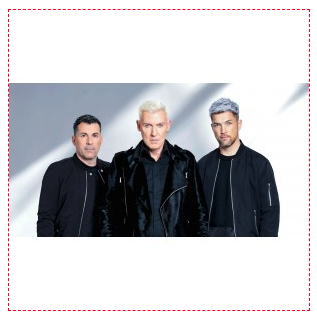
Using the Images Plugin (with a little help from Glide), you are able to alter any image you pass to it using a set of manipulators. Each of these is accessible by passing the correct attributes in your twig file.
<img src="{{ self.image | glide({w:'300', h:'300',fit:'crop', fm:'webp'}) }}" alt="...">
Size
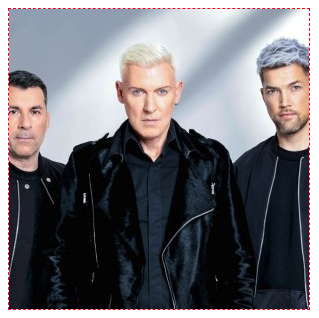
Width
Sets the width of the image in pixels
<img src="{{ self.image | glide({w:'300'}) }}" alt="...">
Height
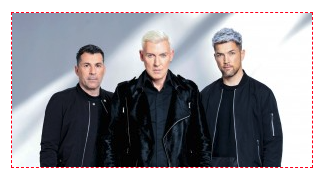
Sets the height of the image in pixels
<img src="{{ self.image | glide({h:'300'}) }}" alt="...">

Fit
Sets how the image is fitted within the aforementioned dimensions. This accepts a number of different options:
contain
This is the default option. It resizes the image to fit within the width and height boundaries without cropping, distorting or altering the aspect ratio.
max
This will do the same as contain, while also not increasing the size of the image if it is smaller than the output size.
fill
This resizes the image to fit within the width and height boundaries without cropping or distorting the image, and the remaining space is filled with the background colour.
fill-max
This resizes the image to fit within the width and height boundaries without cropping, but will upscale the image if it's smaller. The finished image will have remaining space on either the height or width (unless the aspect ratio is the same). The remaining space will be filled with the background colour.
stretch
This stretches the image to fit the constraining dimensions exactly. The end result will not maintain the aspect ratio of the initial image.
crop
This resizes the image to fill with width and height boundaries and crops any excess image data. The resulting image will match the width and height constraints without distorting the image. More information can be found on this in the Crop section.
<img src="{{ self.image | glide({w:'300',h:'300',fit:'stretch'}) }}" alt="...">
Crop
Fit
Crop
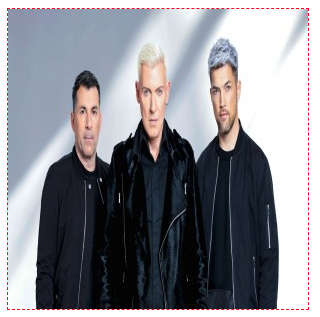
When used in conjunction with size, this resizes the image to the dimensions provided and removes any excess image data surrounding it. It allows you to have an image fit specific proportions without distorting it.
<img src="{{ self.image | glide({w:'300',h:'300',fit:'crop'}) }}" alt="...">
Crop Position
You can state where the image is cropped by adding a crop position. This accepts crop-top-left, crop-top, crop-top-right, crop-left, crop-center, crop-right, crop-bottom-left, crop-bottom, crop-bottom-right. If not included, crop-center is the same as crop.
<img src="{{ self.image | glide({w:'300',h:'300',fit:'crop-bottom-right'})}}" alt="...">
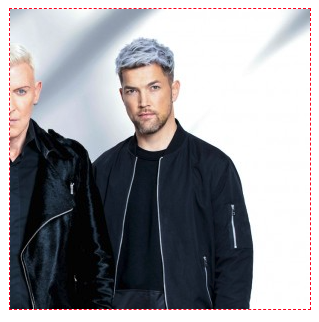
Crop Focal Point
You can also be more specific about the exact crop position by using a focal point.
<img src="{{ self.image | glide({w:'300',h:'300',fit:'crop-25-75'})}}" alt="...">
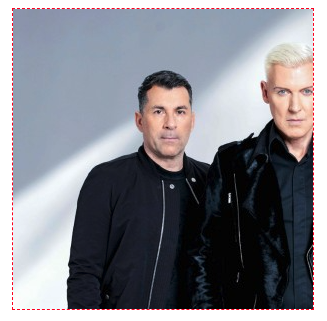
Crop
This crops the image to specific dimensions before doing any other resize operations. Must be in the format of width,height,x,y.
<img src="{{ self.image | glide({crop:'250,250,100,100'})}}" alt="...">
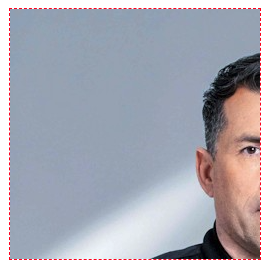
Encode
Quality
This defines the quality of the image. You can use values between 0 and 100 with the default being 90. It's worth noting that this is only relevant if the format is set to jpg, pjpg, webp or avif.
<img src="{{ self.image | glide({w:'300',h:'300',fit:'crop',q:'3'})}}" alt="...">
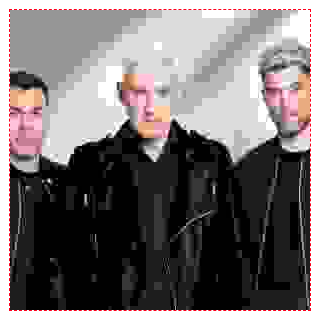
Format
This changes the format of the rendered image. By default, it is set to jpg, but can be set to jpg, pjpg, png, gif, webp or avif.
<img src="{{ self.image | glide({w:'300',h:'300',fit:'crop',fm:'png'})}}" alt="...">
Others
In addition to the above, there's also many other options available to us should we need them:
Orientation - or
Rotates the image accepting auto, 0, 90, 180, 270 as parameters
<img src="{{ self.image | glide({w:'300',h:'300',fit:'crop',or:'180'})}}" alt="...">

Brightness - bri
Adjusts the image brightness accepting values between -100 and +100 as parameters
<img src="{{ self.image | glide({w:'300',h:'300',fit:'crop',bri:'-50'})}}" alt="...">

Contrast - con
Adjusts the image contrast accepting values between -100 and +100 as parameters
<img src="{{ self.image | glide({w:'300',h:'300',fit:'crop',con:'+70'})}}" alt="...">
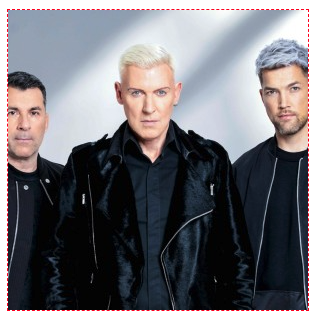
Gamma - gam
Adjusts the image gamma accepting values between 0.1 and 9.99 as parameters
<img src="{{ self.image | glide({w:'300',h:'300',fit:'crop',gam:'6.9'})}}" alt="...">
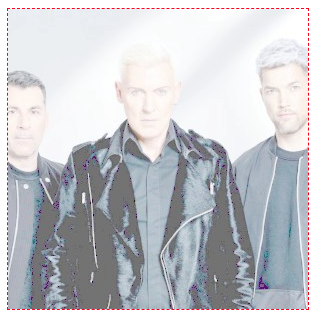
Sharpen - sharp
Sharpens the image accepting values between 0 and 100 as parameters
<img src="{{ self.image | glide({w:'300',h:'300',fit:'crop',sharp:'80'})}}" alt="...">
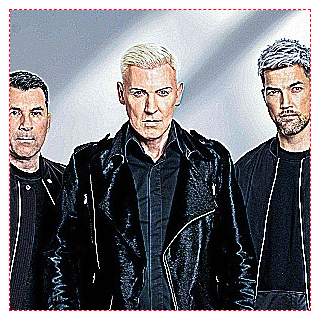
Blur - blur
Sharpens the image accepting values between 0 and 100 as parameters
<img src="{{ self.image | glide({w:'300',h:'300',fit:'crop',blur:'70'})}}" alt="...">
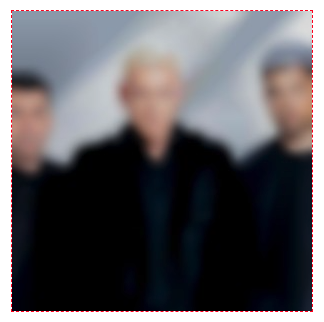
Pixelate - pixel
Applies a pixelation effect to the image accepting values between 0 and 1000 as parameters
<img src="{{ self.image | glide({w:'300',h:'300',fit:'crop',pixel:'7'})}}" alt="...">
Filter - filt
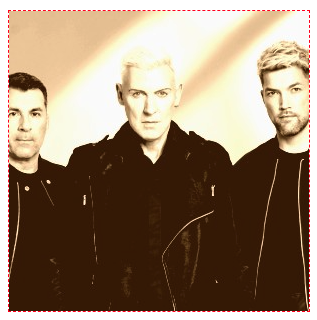
Applies a filter effect to the image accepting either greyscale or sepia as parameters
<img src="{{ self.image | glide({w:'300',h:'300',fit:'crop',filt:'sepia'})}}" alt="...">
Background - bg
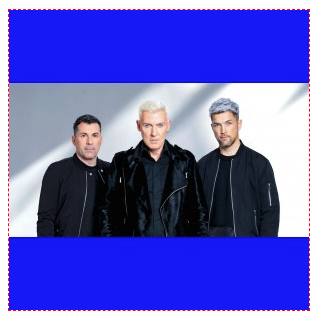
Sets the background colour of the image. (For a full list of all accepted colour names and codes, please look at Glide's official colours list)
<img src="{{ self.image | glide({w:'300',h:'300',fit:'fill',bg:'blue'})}}" alt="...">
Border - border
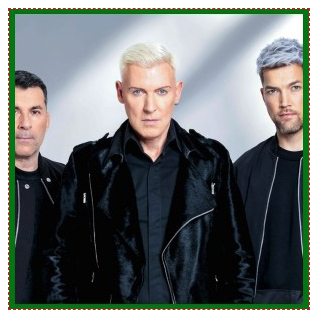
Applies a border to the image, the required format being width,colour,method. (The method parameter sets how the border will be displayed. You can pick between overlay, shrink and expand)
<img src="{{ self.image | glide({w:'300',h:'300',fit:'crop',border:'5,green,overlay'})}}" alt="...">
Icon - icon
One that we actually created ourselves if you can believe that. This combines a couple existing manipulations to give you a resized version of the image with a white background filling in the gaps. You pass the desired width and height as parameters (icon(300,300))
<img src="{{ self.image | glide({icon:'300,300'})}}" alt="...">